Build a toy from blocks. Print it with joints that move.
Cubie is an editor that runs in your browser. Place blocks, press Assembly, and it cuts your toy into parts with snap-in joints. Then download a 3MF or STL file for your printer. No CAD, no glue, no screws.

Watch one toy go from the first block to the print bed.
Ninety seconds in the real editor: blocks, Assembly, a texture, a spring, a pose and a file for the printer.
Make a toy that moves in four steps.
01 / 04
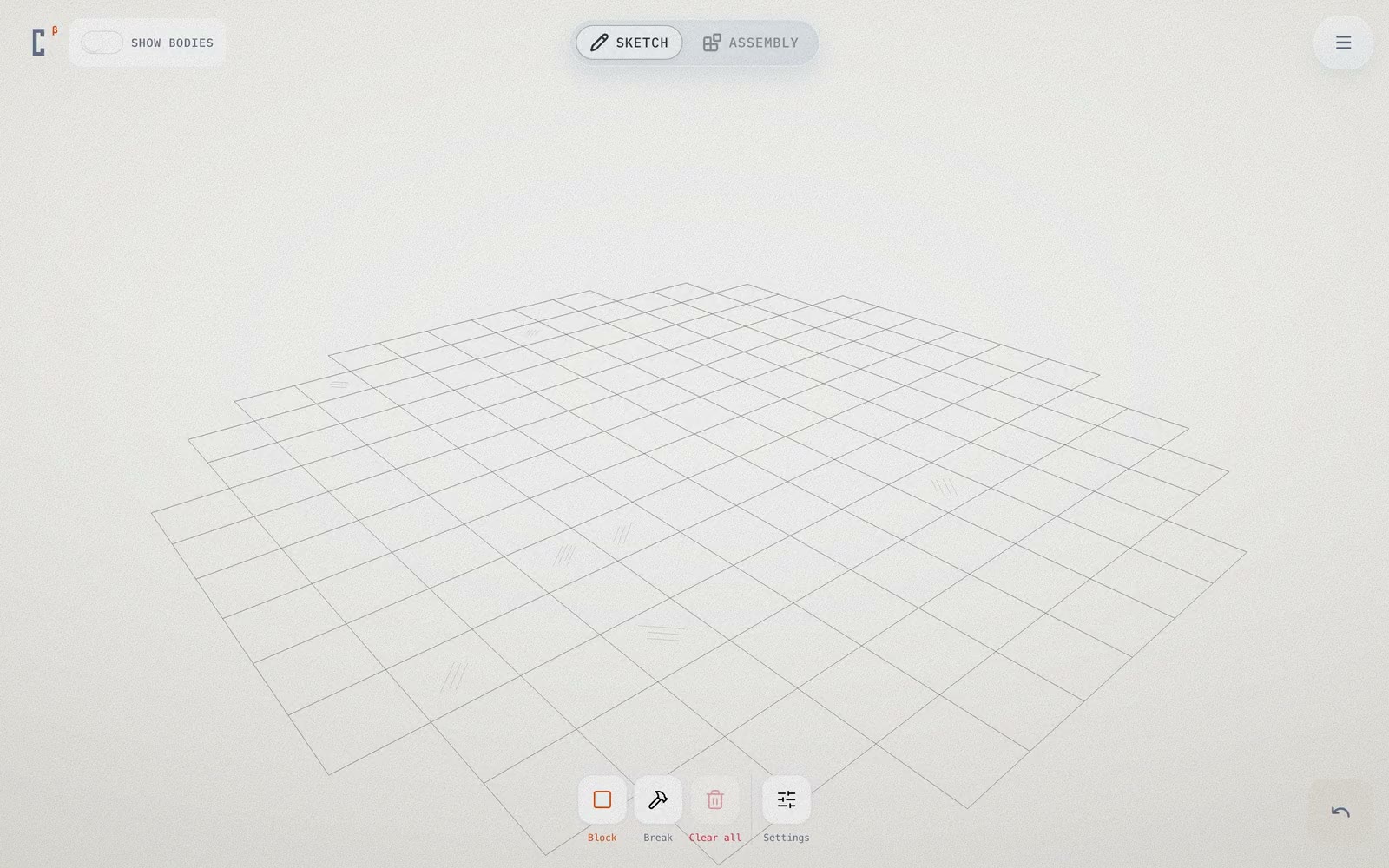
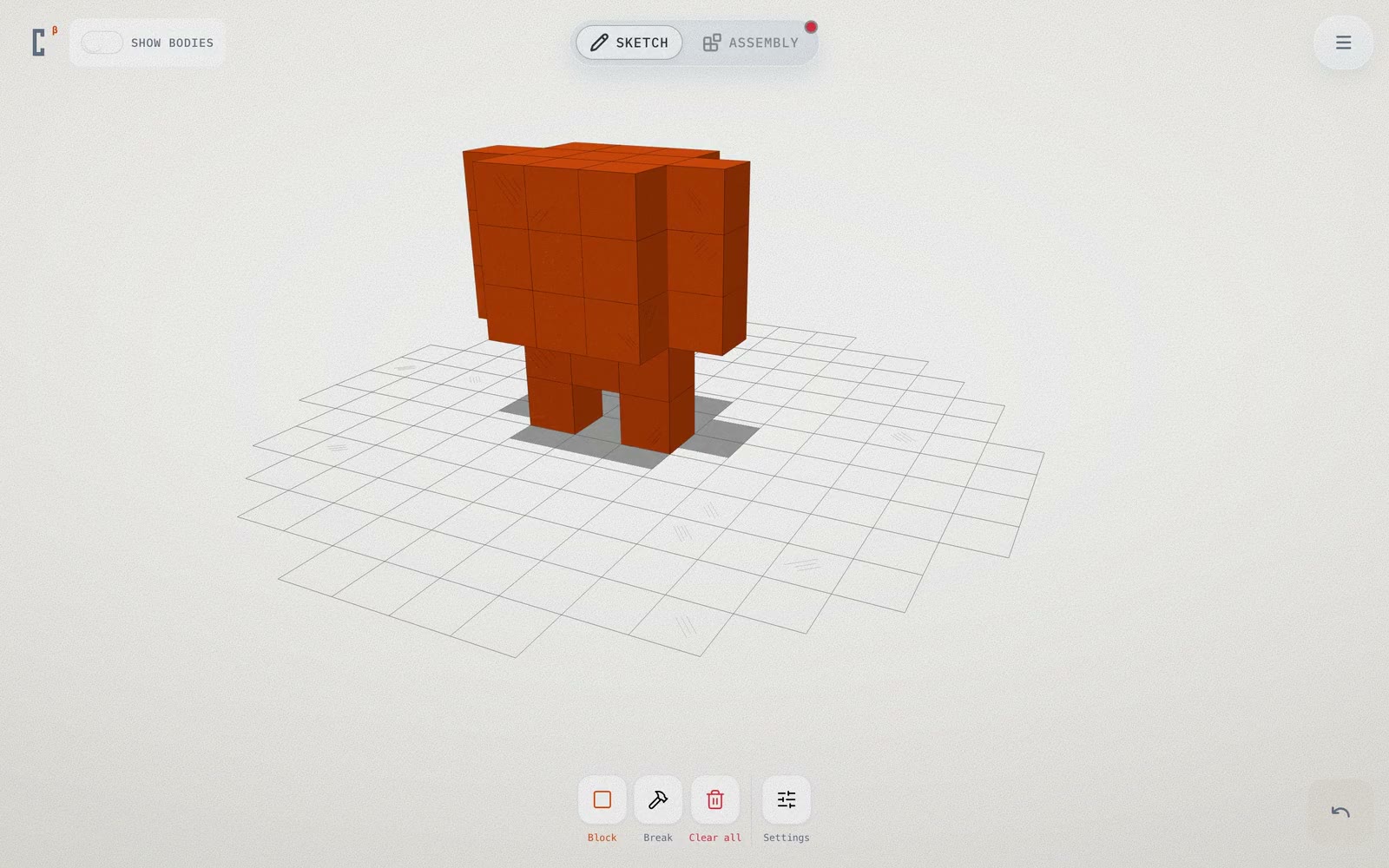
Place blocks where you want them.
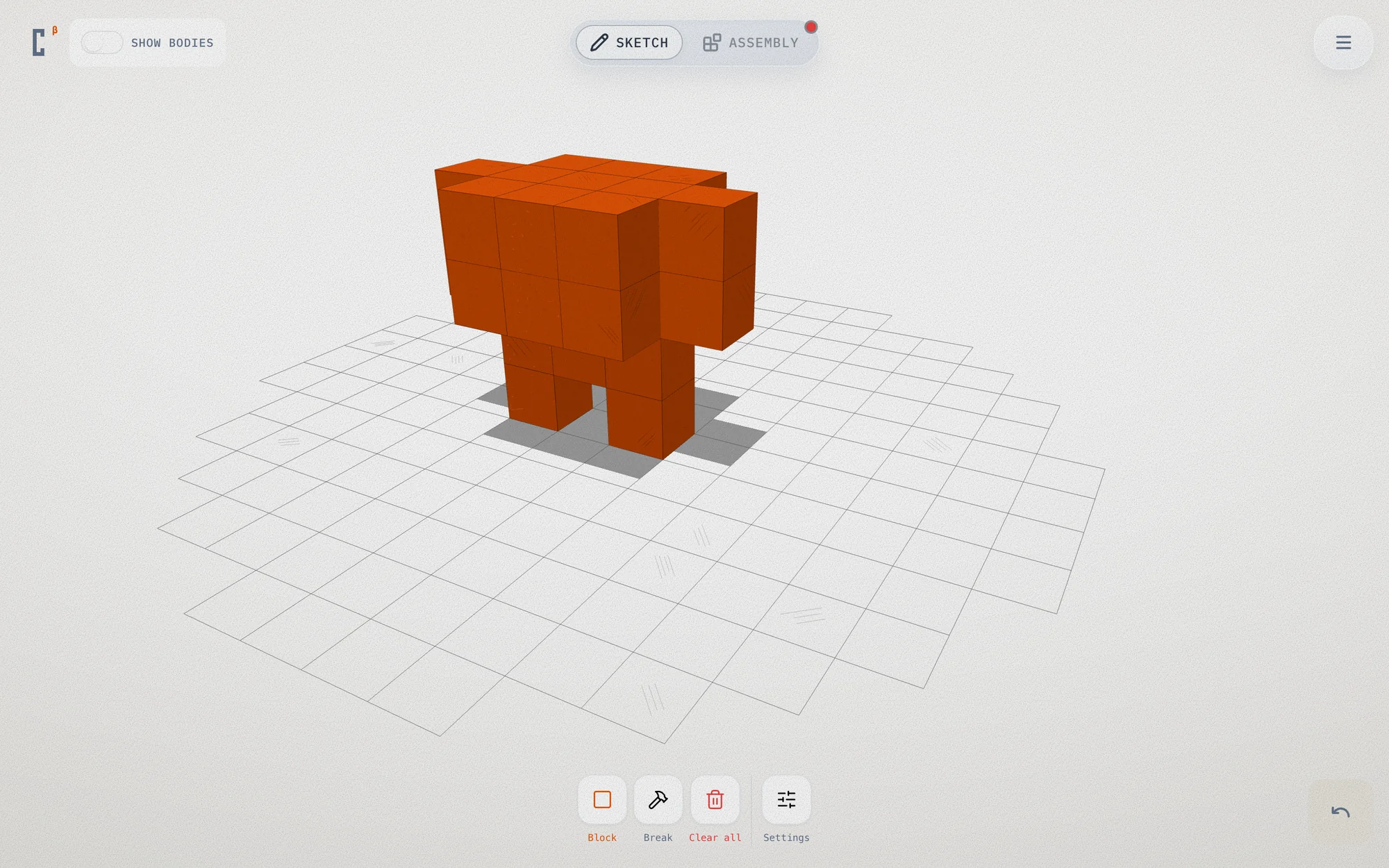
Add a block with a tap on the grid, stack more on top, and take one away with Break.
02 / 04
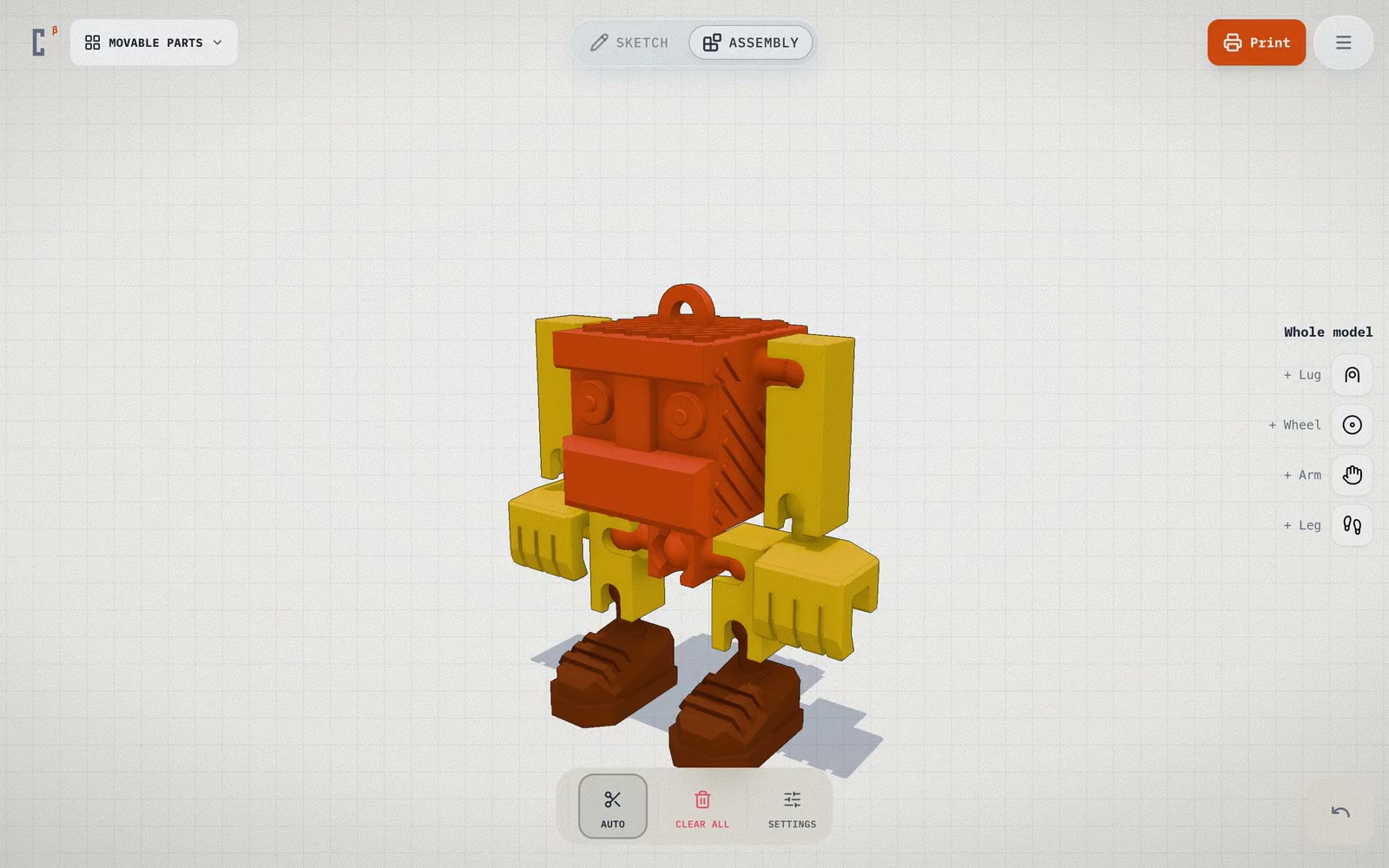
Press Assembly and get the joints.
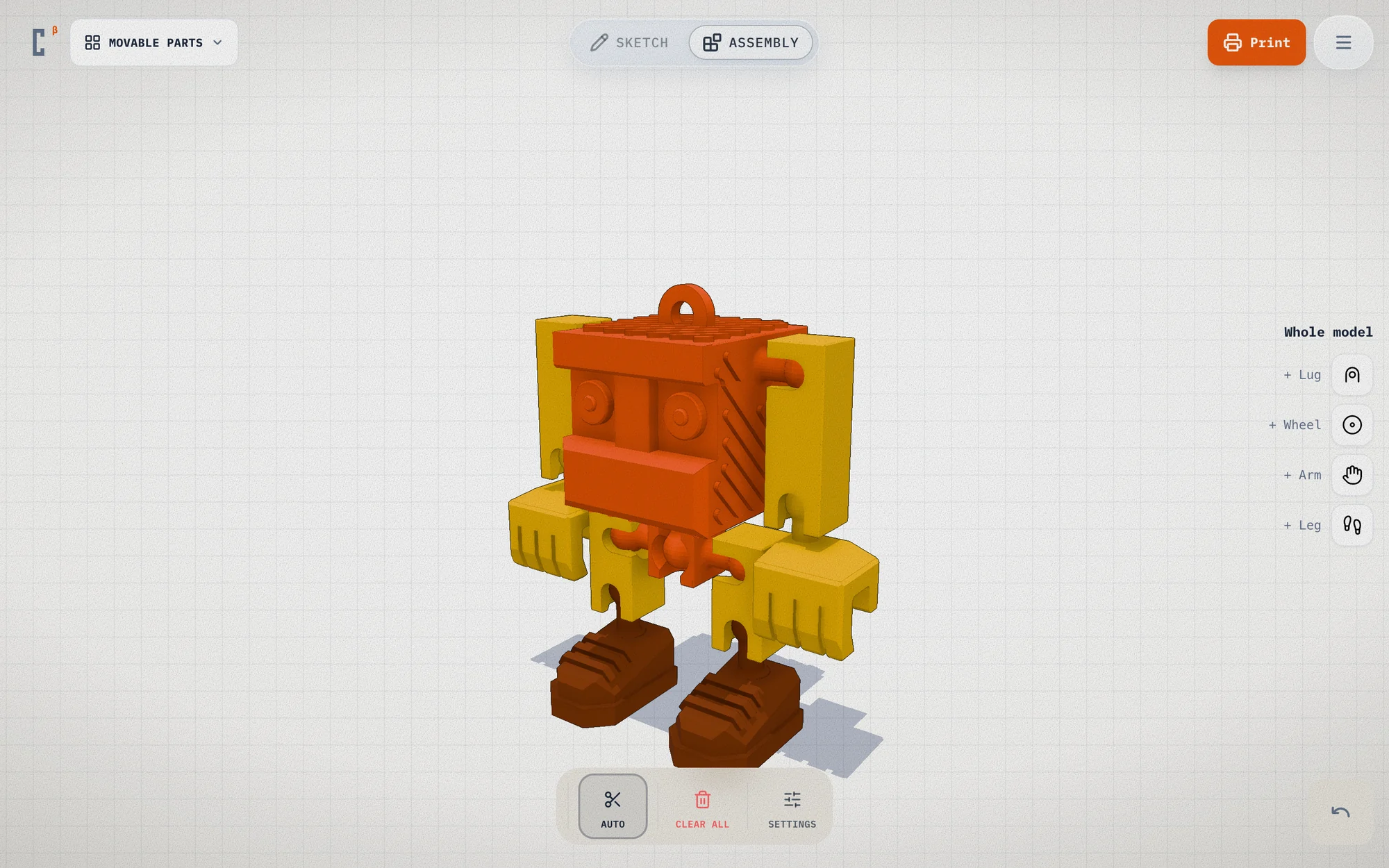
Cubie finds where parts meet, cuts them apart and puts a snap-in joint in every seam.
03 / 04
Bend it before you print it.
Hold Spin to turn a part on its joint, hold Flex to bend it. You see how it moves before you spend any plastic.
04 / 04
Download a file your slicer knows.
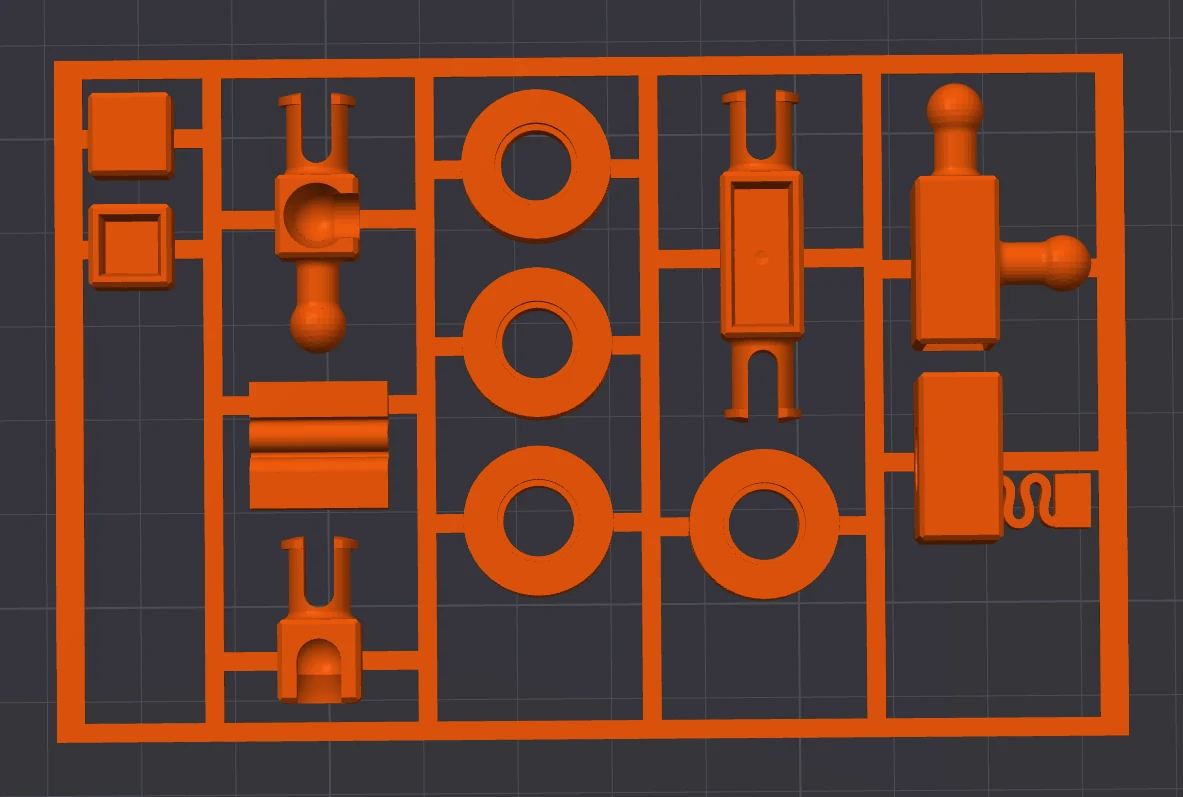
Print gives you a 3MF for Bambu Studio or Orca, or an STL. Tick Kit frame to get every part on one plate.
Choose how every part moves.
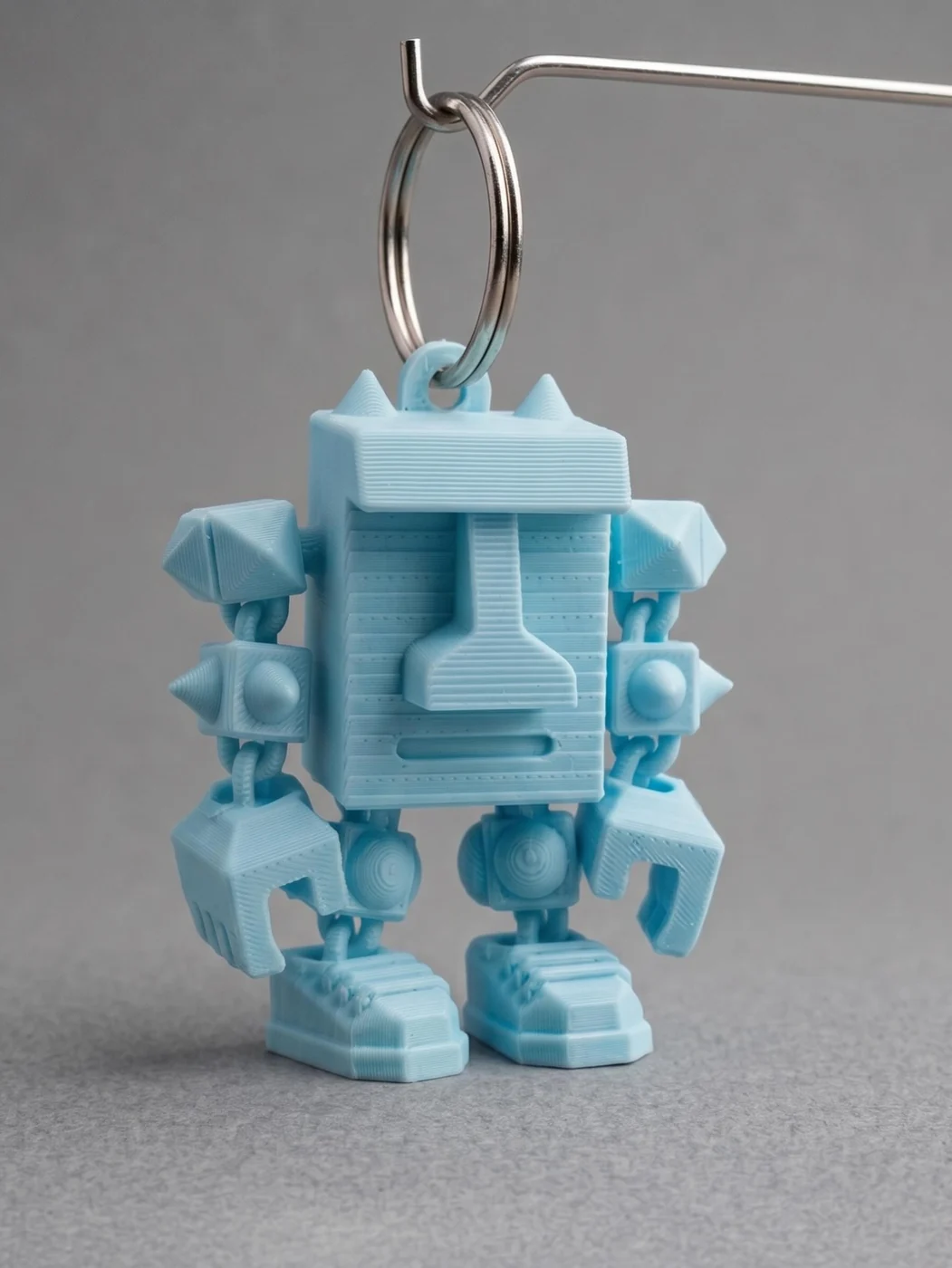
Joints, a spring, hands, feet, a loop and a face on one robot. Move the cursor across it to turn it.
Find every tool right next to your toy.
The canvas stays free. Modes sit on top, block tools at the bottom, and the tools for a part appear when you pick it.
01 / 06
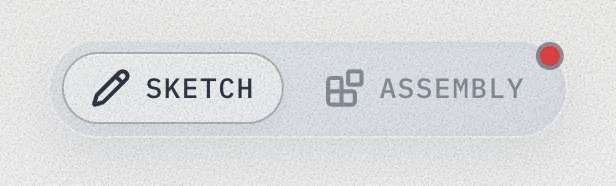
Switch modes with one tap
Sketch is for blocks, Assembly is for parts and joints. Your toy stays the same in both.
02 / 06
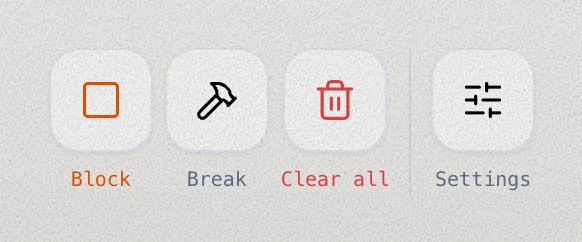
Keep block tools under your thumb
Block, Break, Clear all and Settings sit in one bar at the bottom of Sketch.
03 / 06
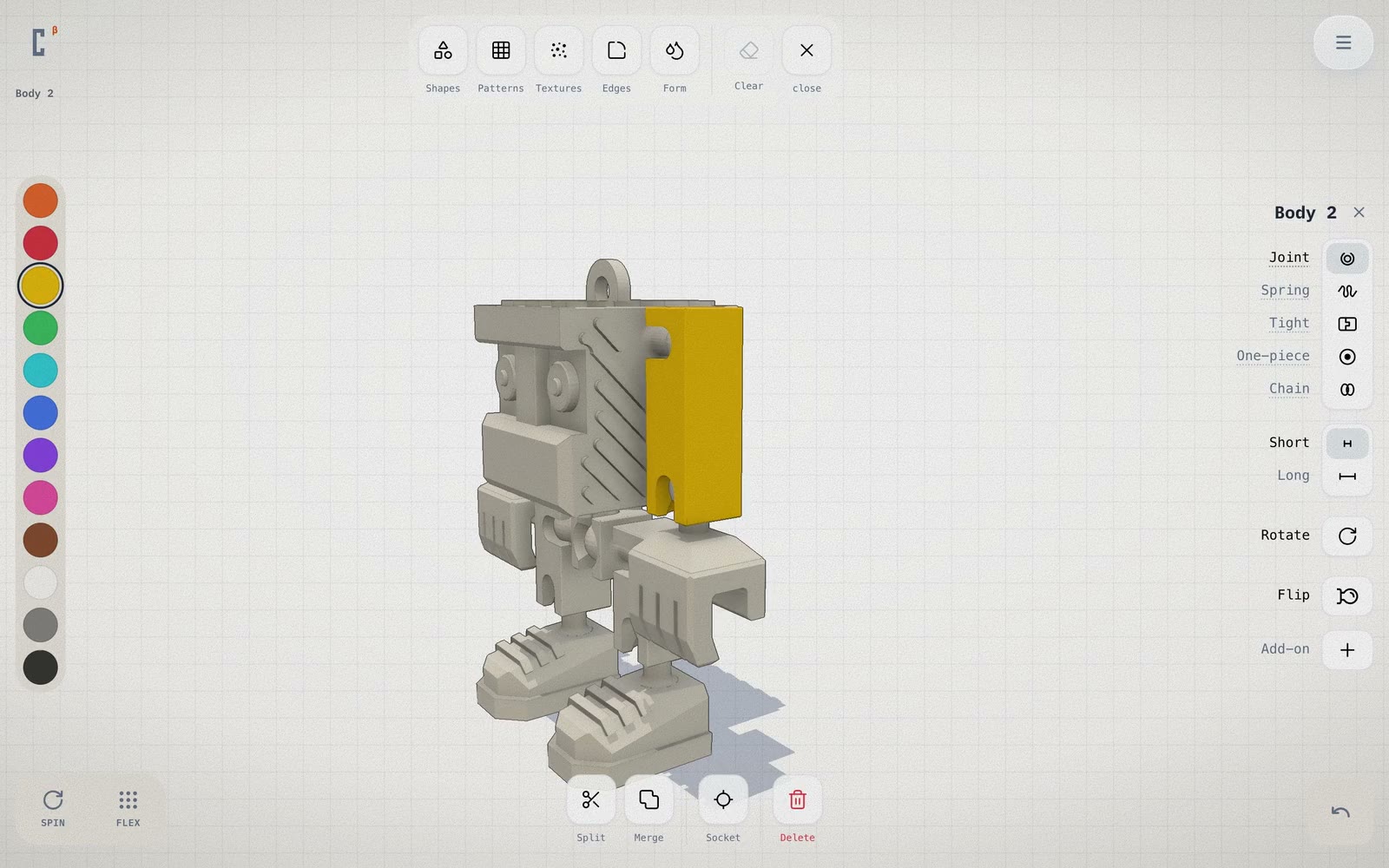
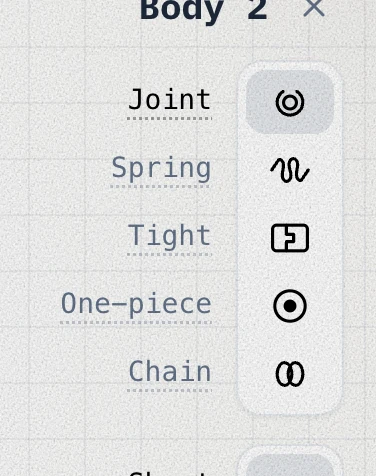
Pick a joint for the part you tapped
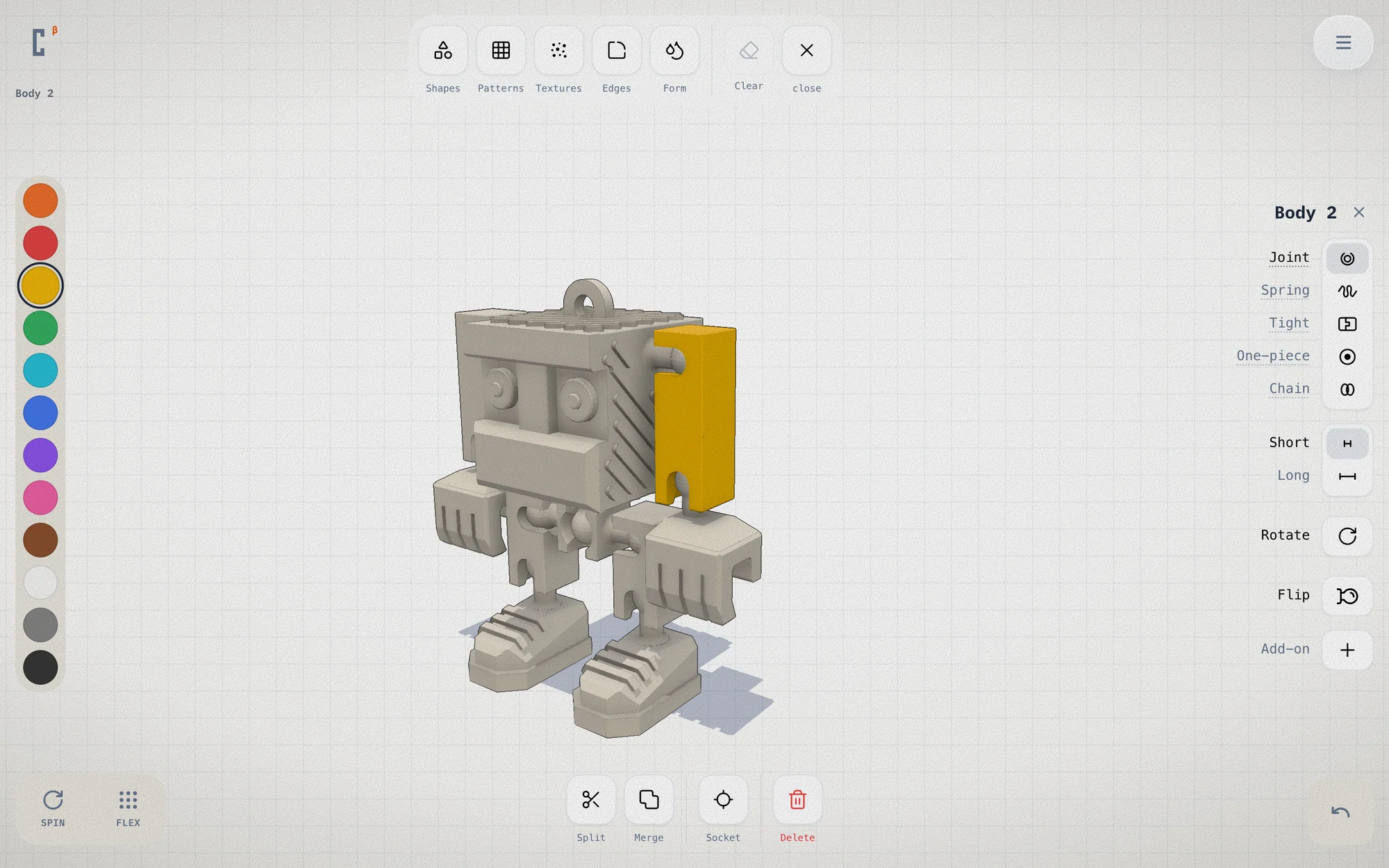
Joint, Spring, Tight, One-piece or Chain, in a column on the right.
04 / 06
Paint a part in one tap
Twelve filament colors run down the left edge.

05 / 06
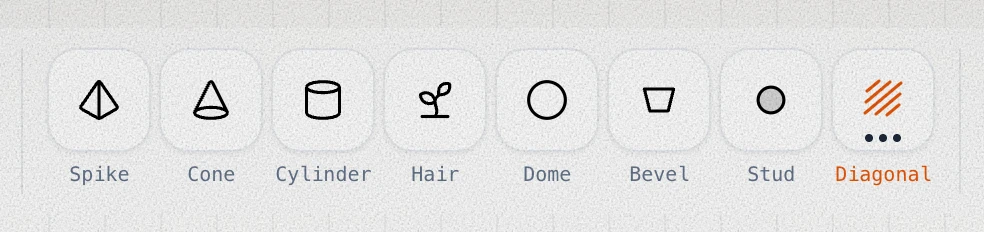
Cover a part with texture
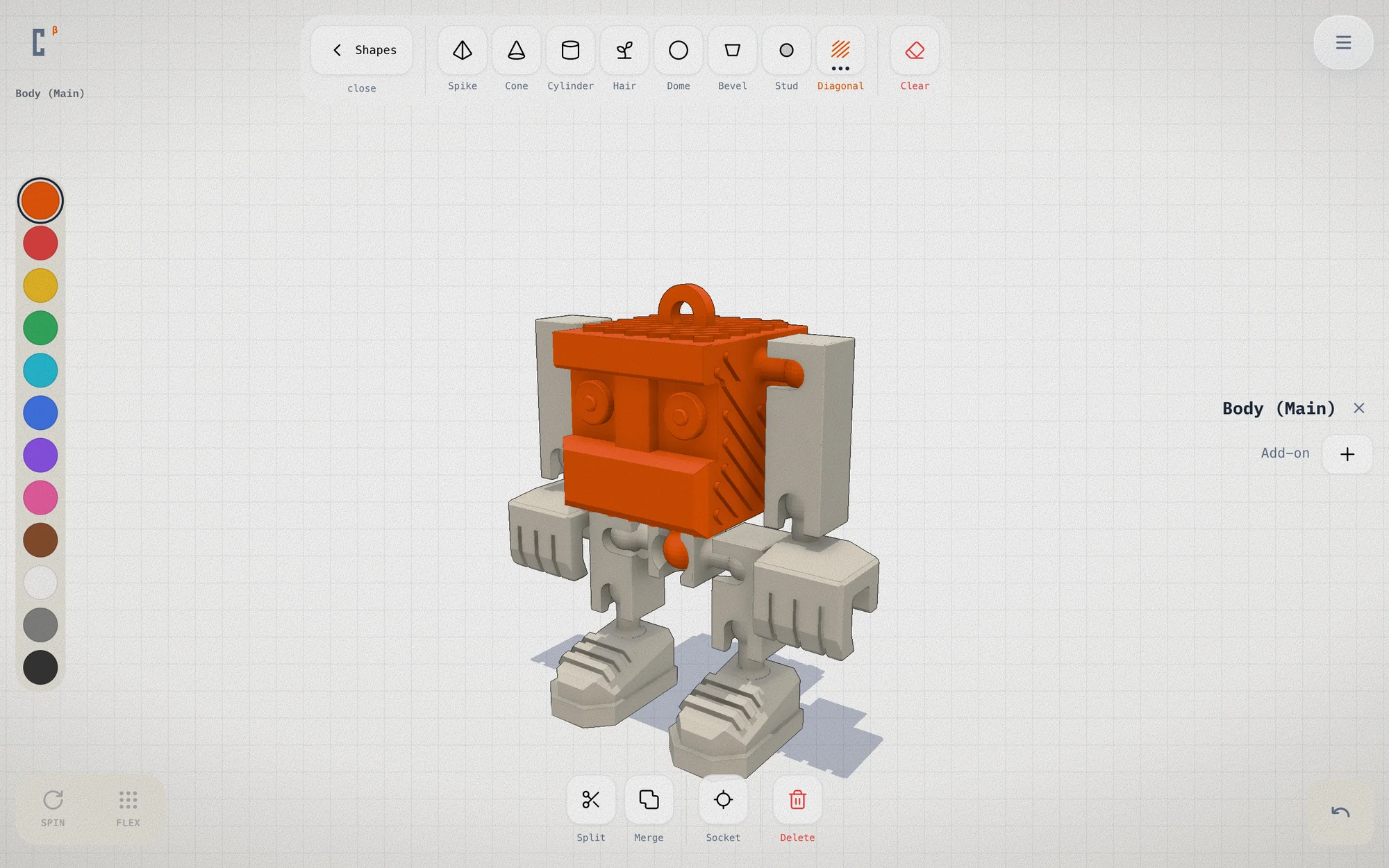
Spike, cone, stud, dome or diagonal grooves on every face at once.
06 / 06
Add wheels, hands and feet in one click
The Whole model column adds a loop, a wheel, an arm or a leg where you tap.
Build with one thumb on a phone.
The same editor fits a phone. Tap to place blocks. The tools for a part slide along one strip at the bottom.
Start from a template, then make it yours.
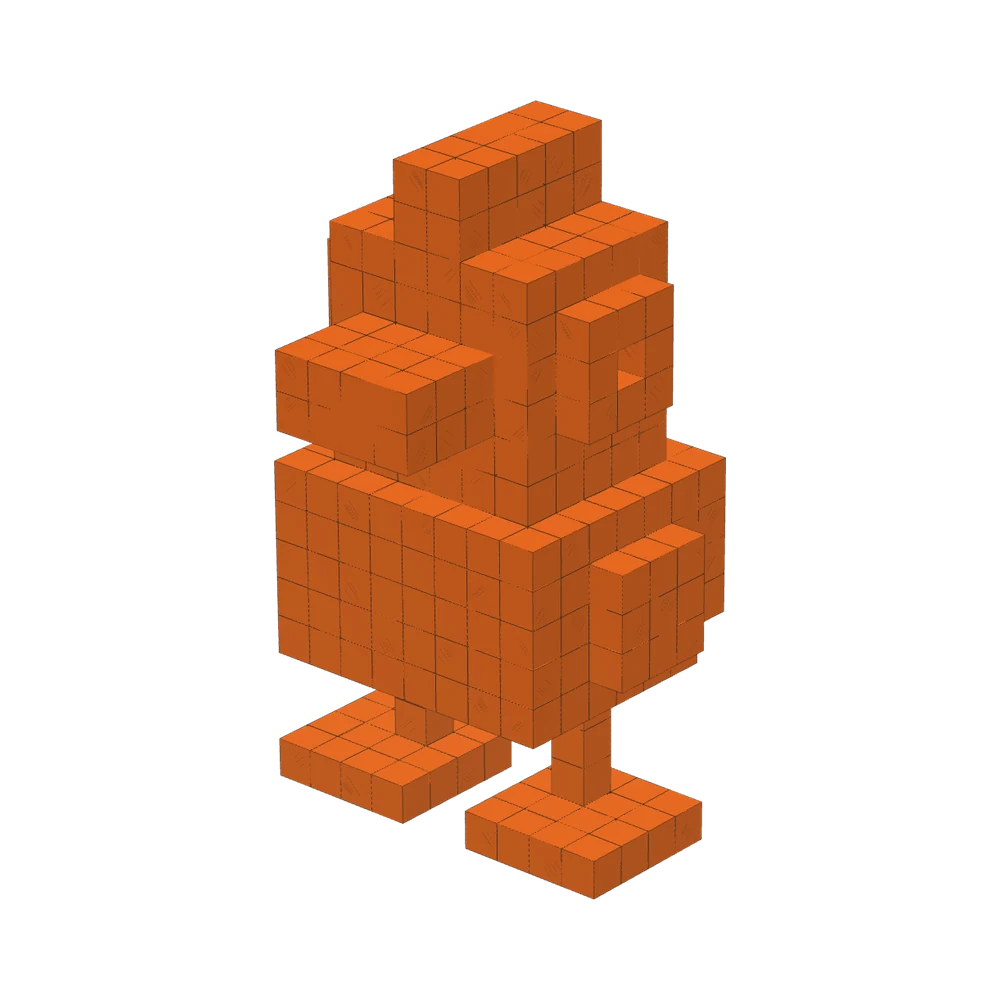
Eleven characters to open and change, among them a punk duck and a moai. Or start from one block.
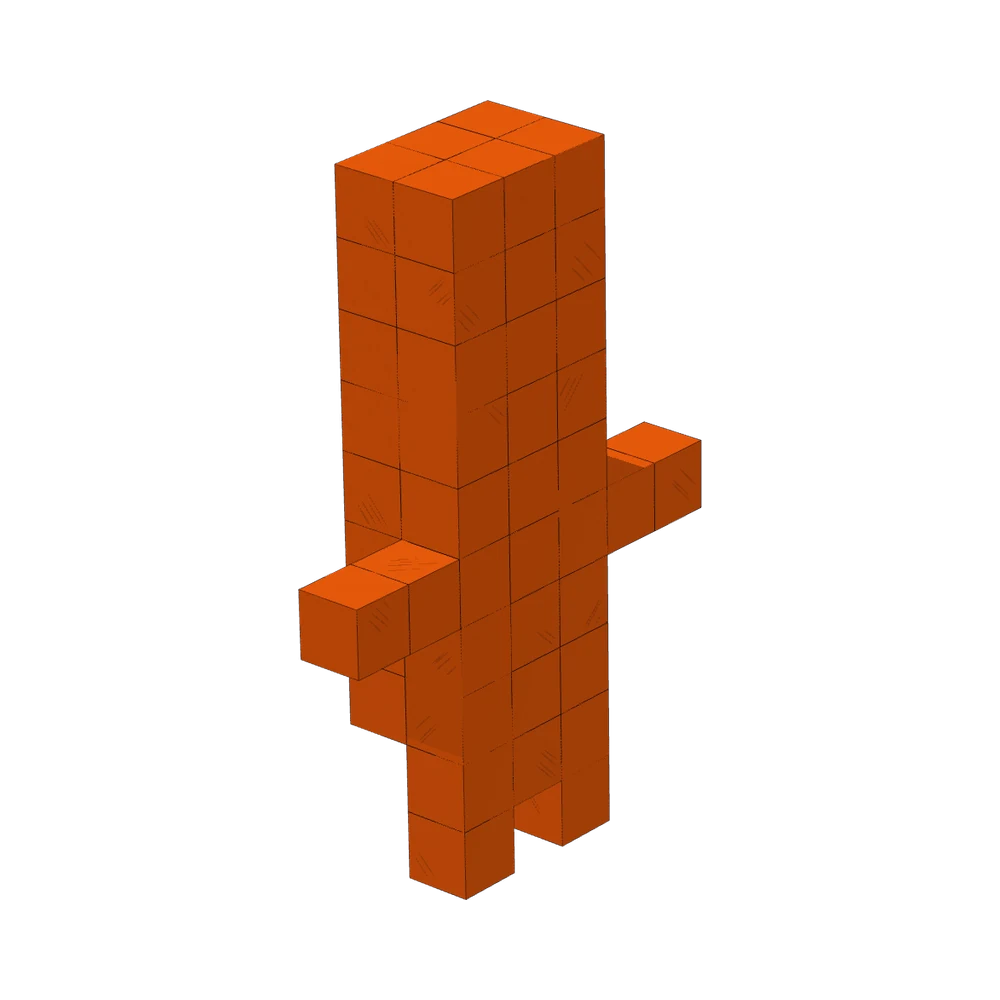
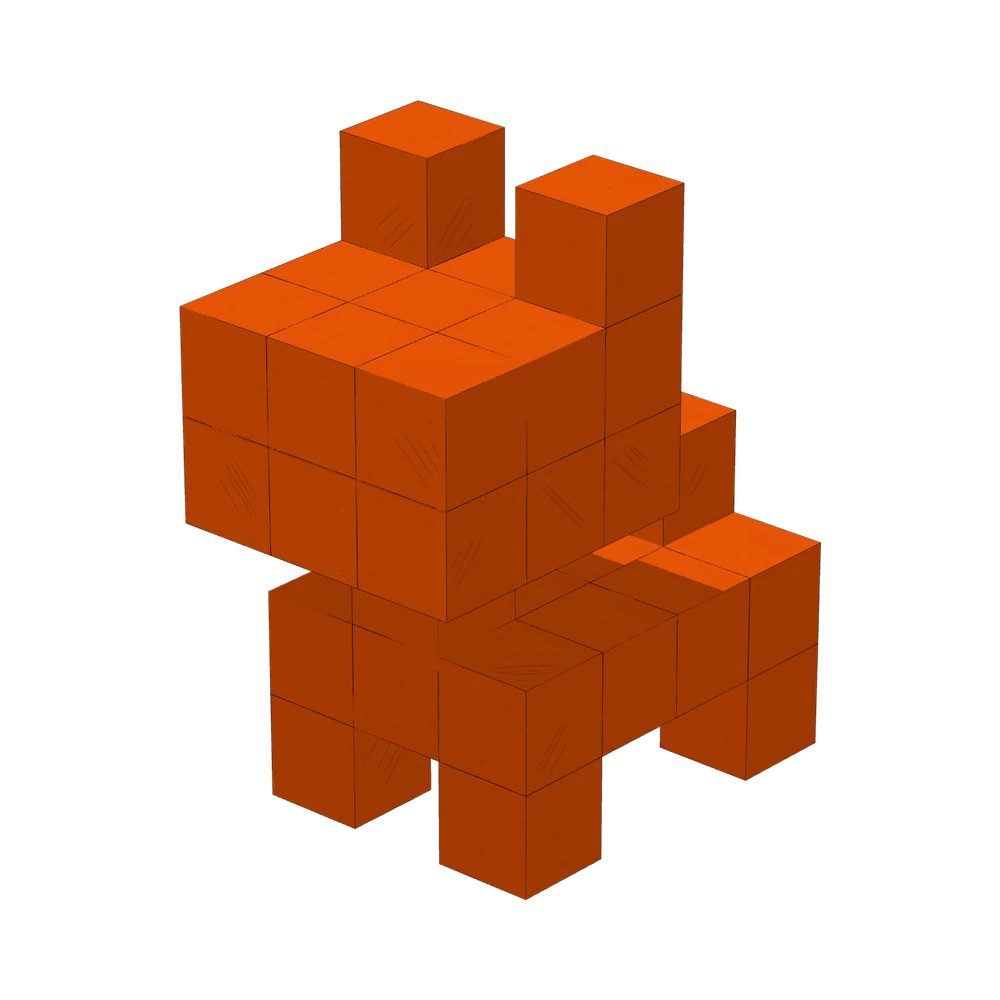
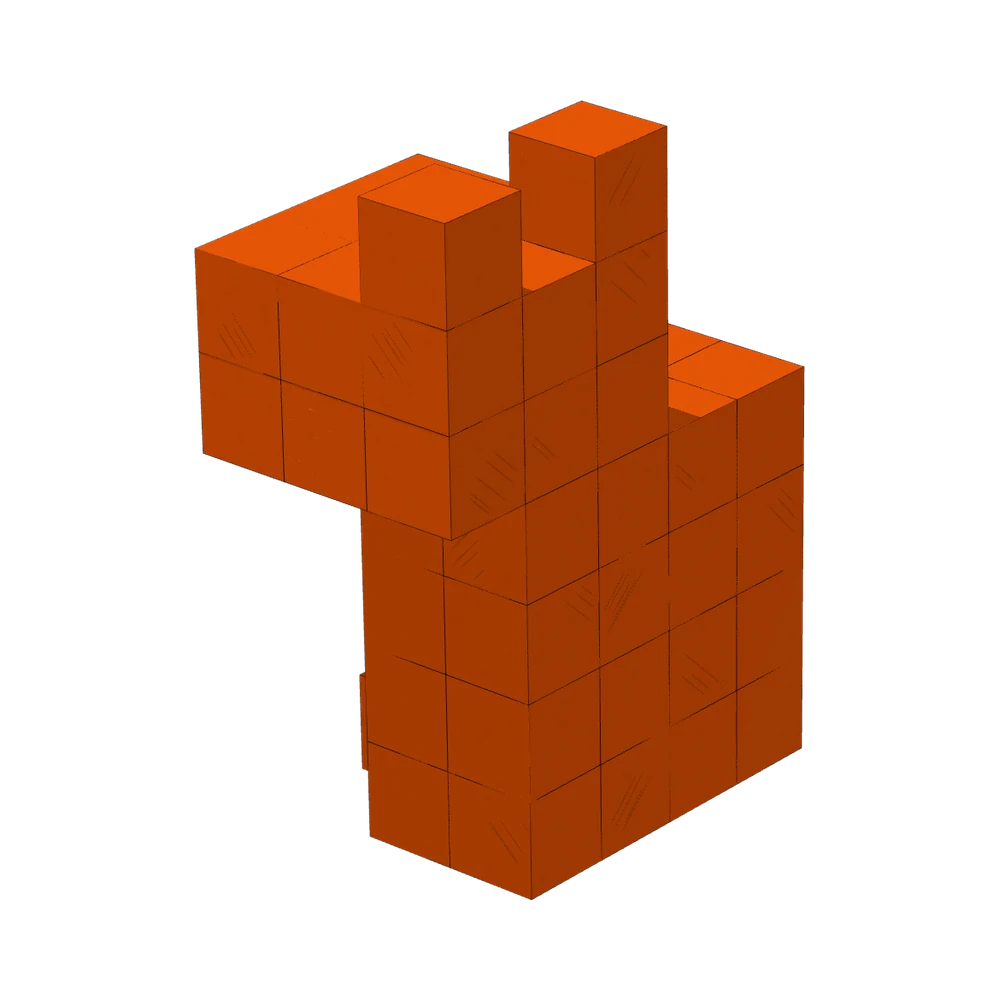
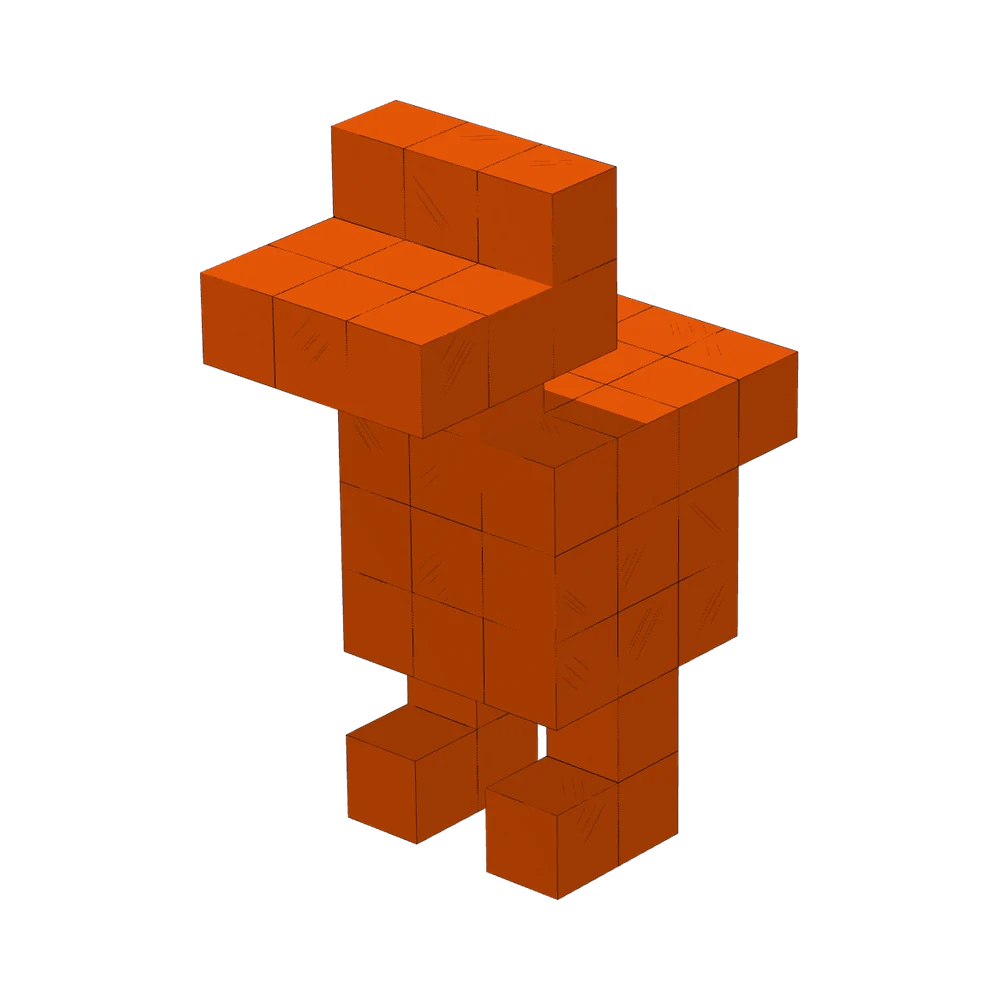
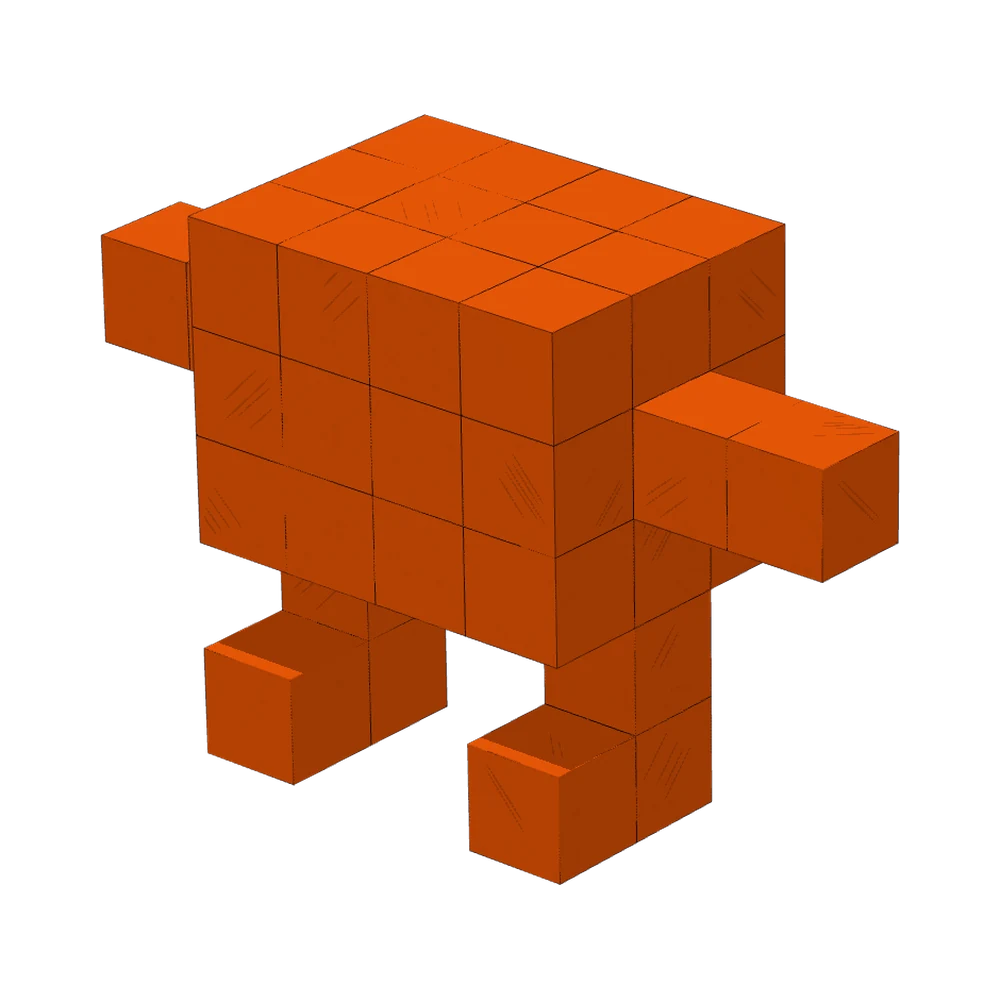
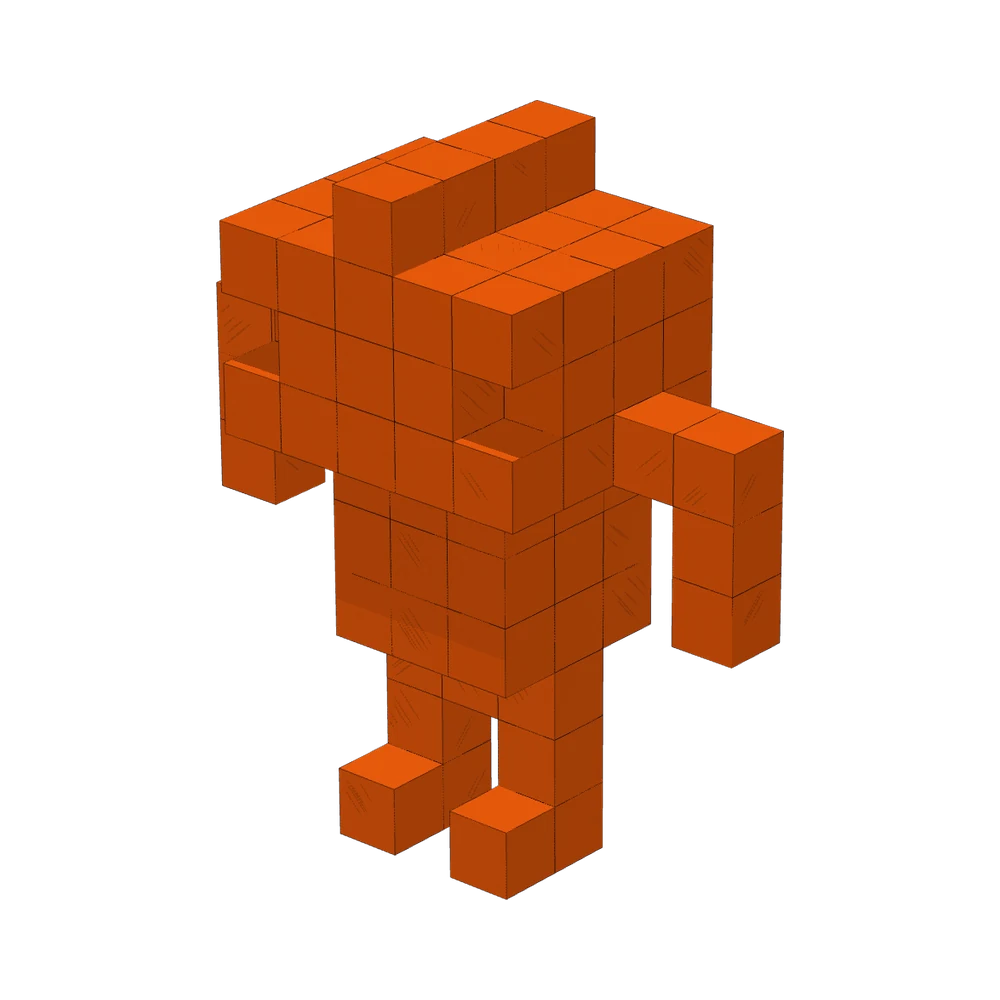
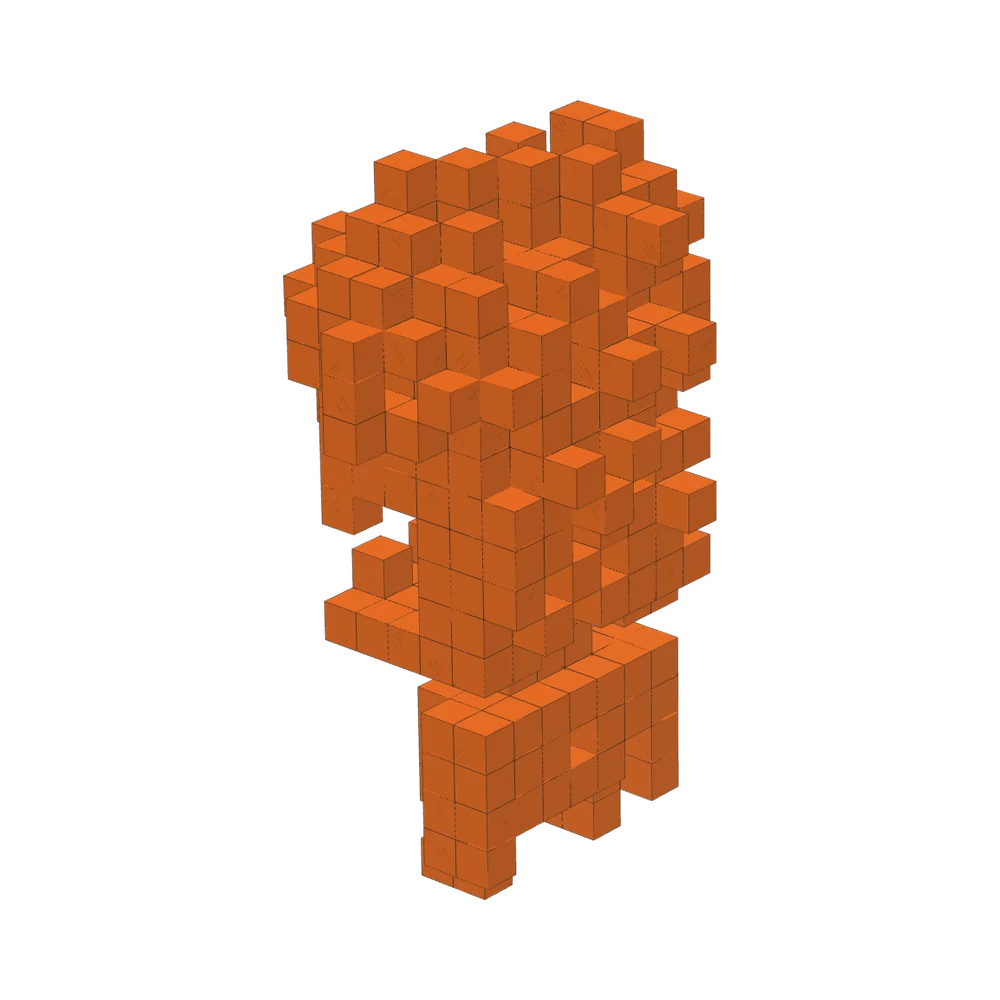
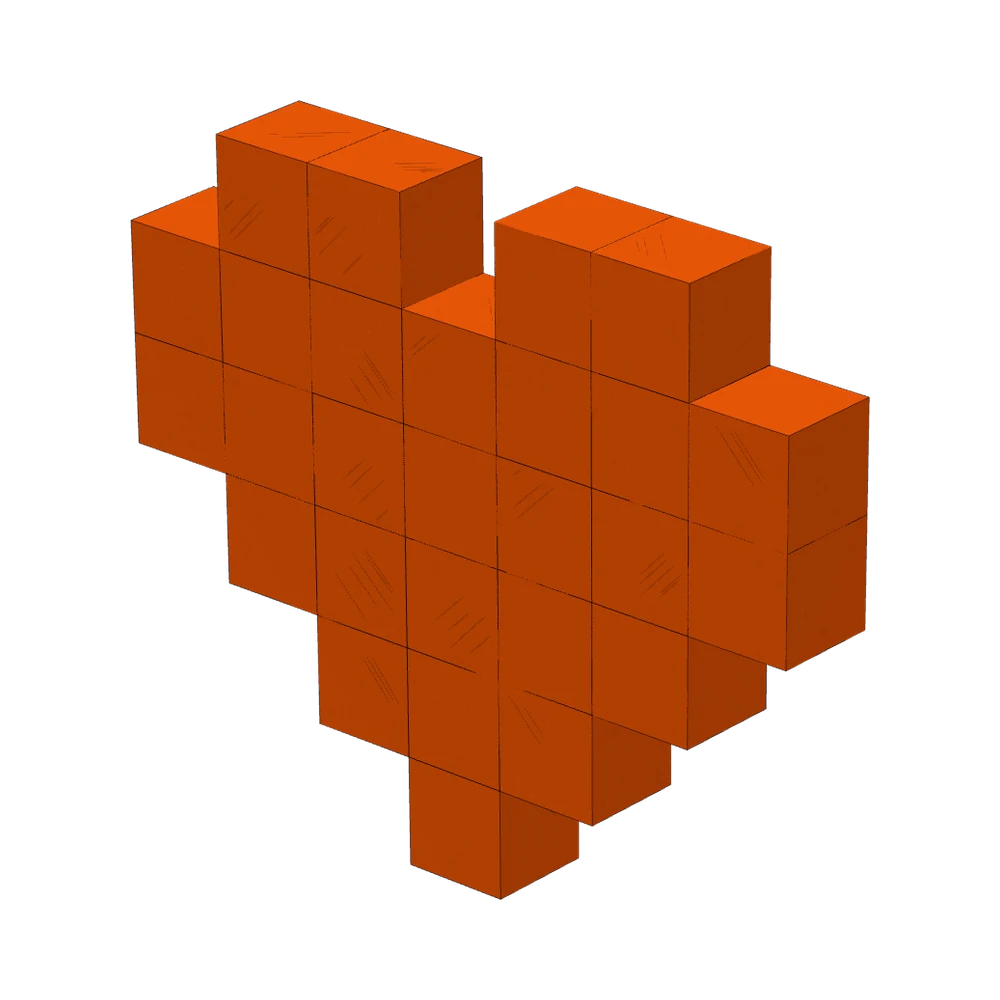
Print it at home and snap it together.
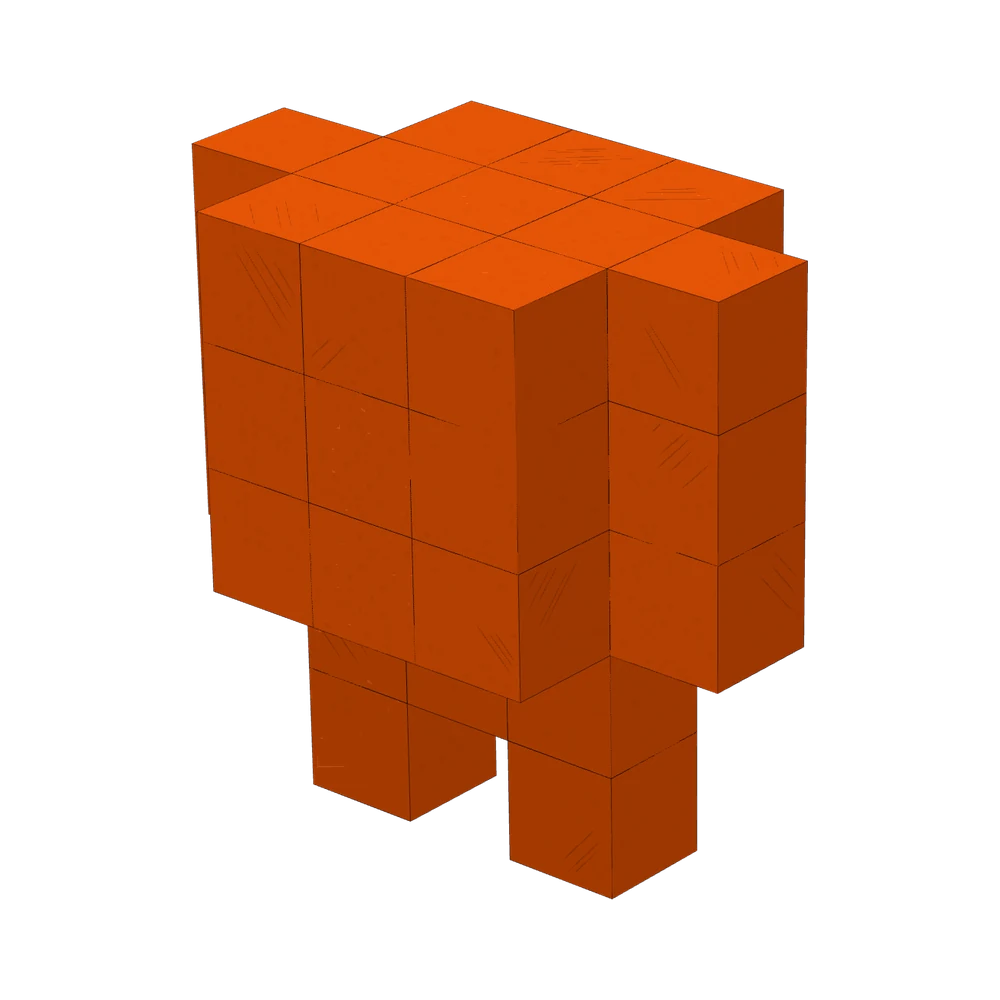
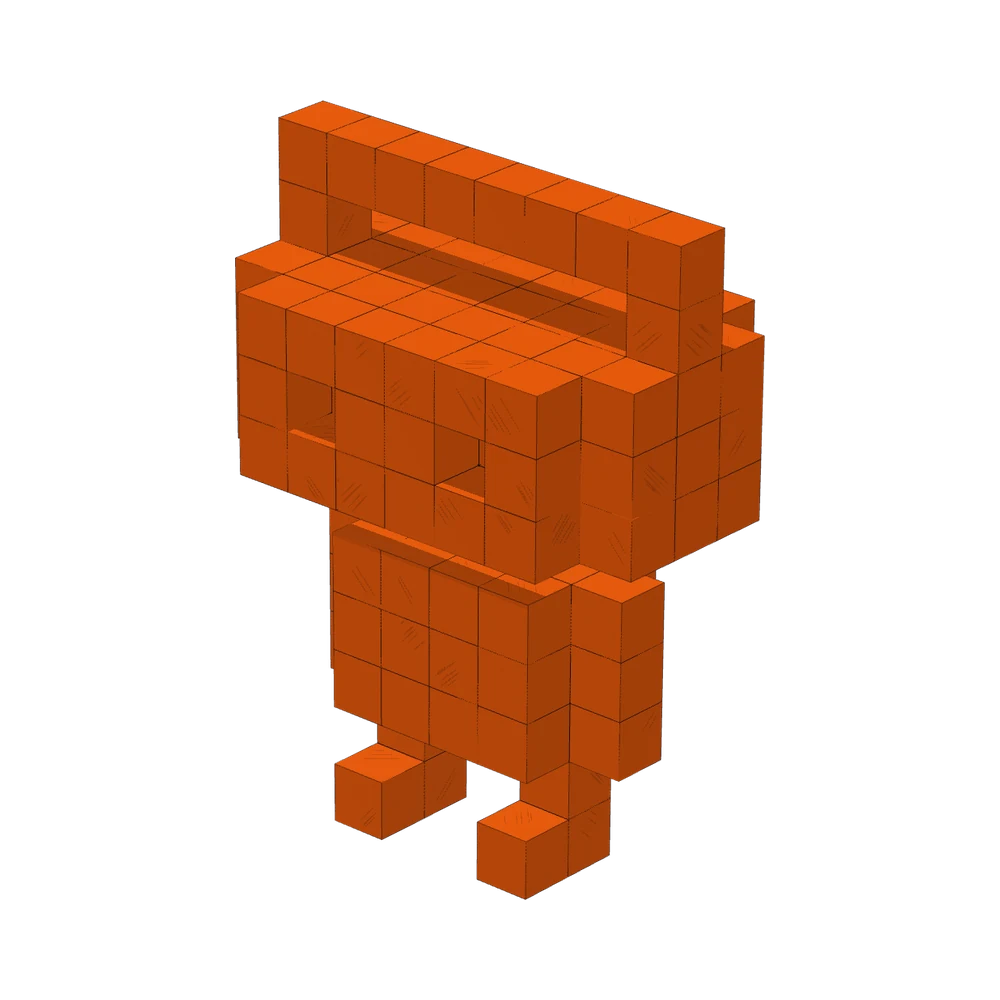
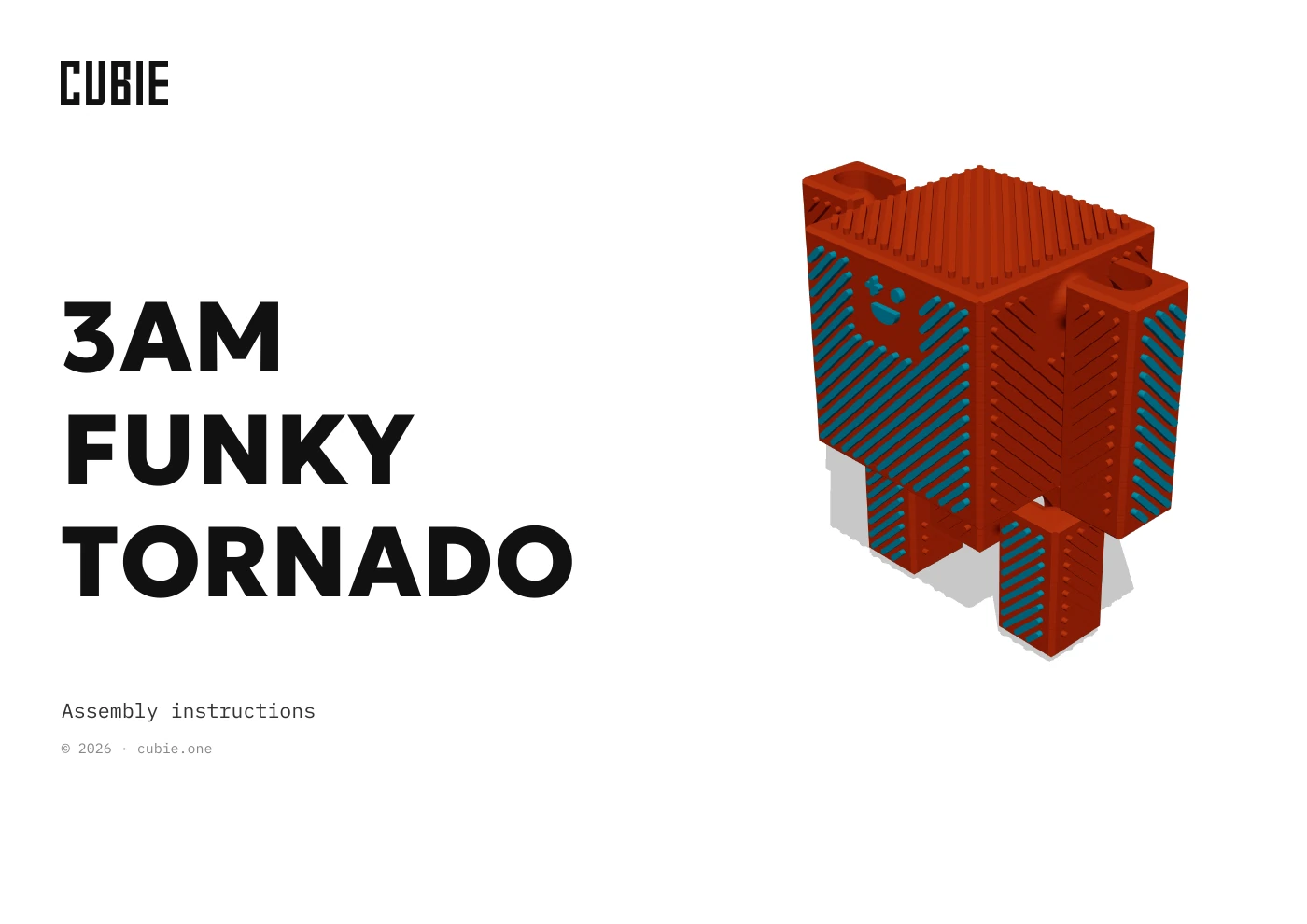
Every file comes out of the same editor: the parts, the kit frame and the instructions that show where each part goes.
Spot a Cubie by its orange block.
The mark is one block drawn in three faces: sun on top, orange in front, shade on the side. The wordmark is built from the same square blocks as the toys, and the page uses the fonts of the editor.


- Orange#ea580c · the block, buttons
- Shade#c2410c · the side of the block
- Sun#fbbf24 · the top of the block
- Ink#1a1614 · text
- Paper#ecebe9 · the editor canvas
GeologicaBuild a toy from blocks
IBM Plex MonoSKETCH · ASSEMBLY · 3MF
Build your first toy tonight.
Start with a template, or with one block. It is free.